
Send a Survey by Email Campaign
In short
Pair any survey with an email campaign to reach your opted-in list by copying the survey's response link into a campaign you write, so recipients get the survey link, responses collect in the survey's dashboard.
Availability: there is no one-click survey campaign yet. You copy the survey's response link into a campaign you write yourself, and campaign sending must be switched on for your workspace.
Steps:
- Create your survey first (a template takes minutes), then open its Results page and choose Copy response link. (Campaigns do not pick up a survey directly.)

- Open Campaigns → Create a campaign and paste the survey link into the campaign content.
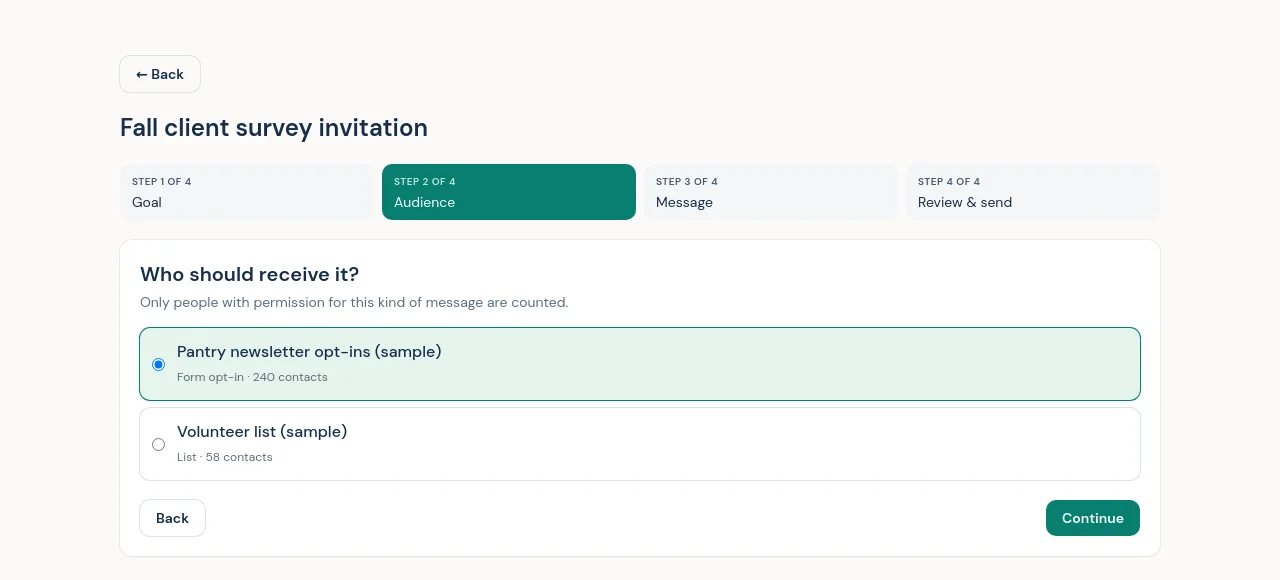
- Select the audience — only people who have opted in to your emails. Verified sender required (see Verify Your Sender).
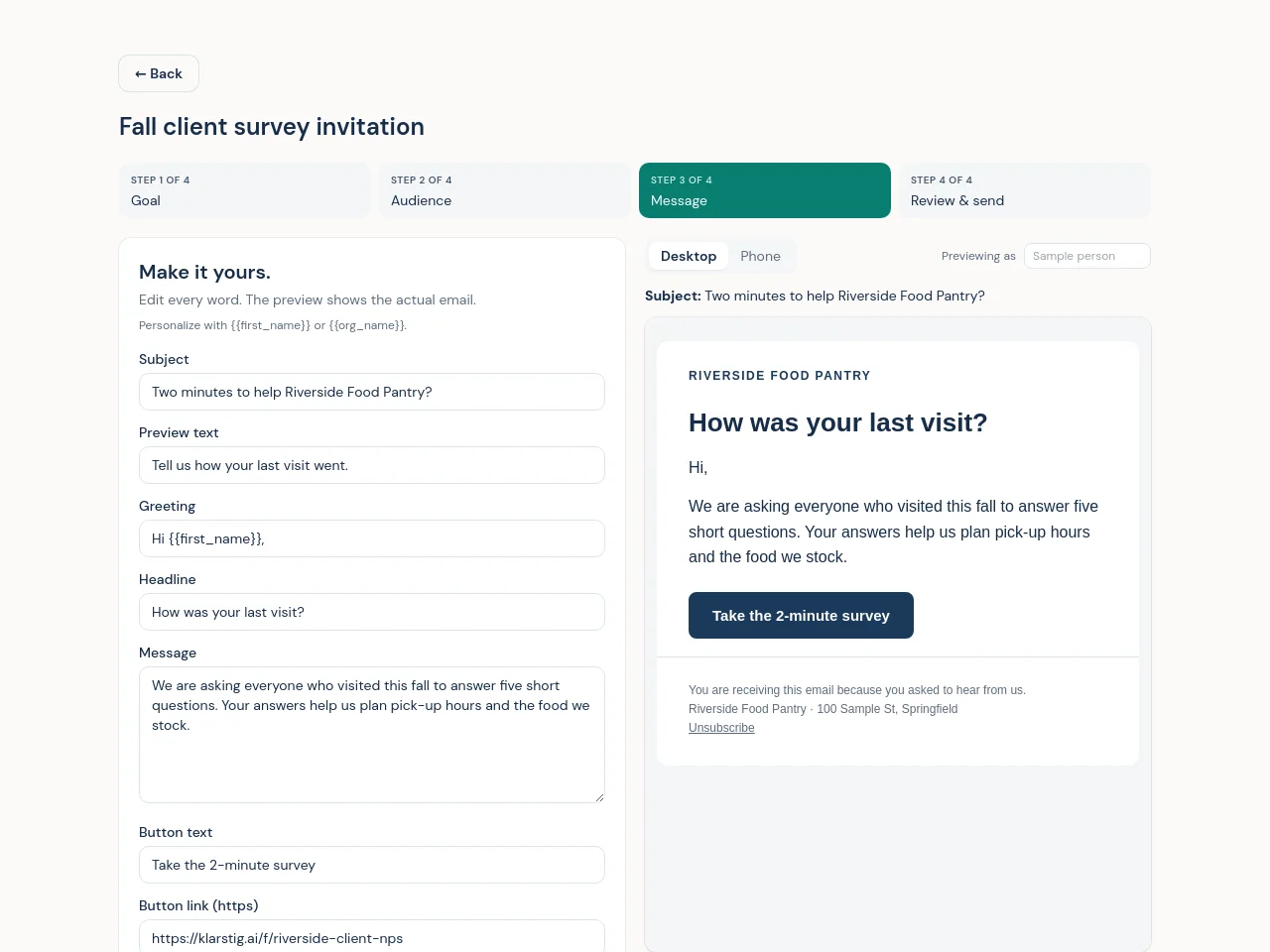
- Write the message: subject, intro line and the survey link (the message is not generated for you). Keep the "2 minutes, anonymous" framing — it lifts response rates.
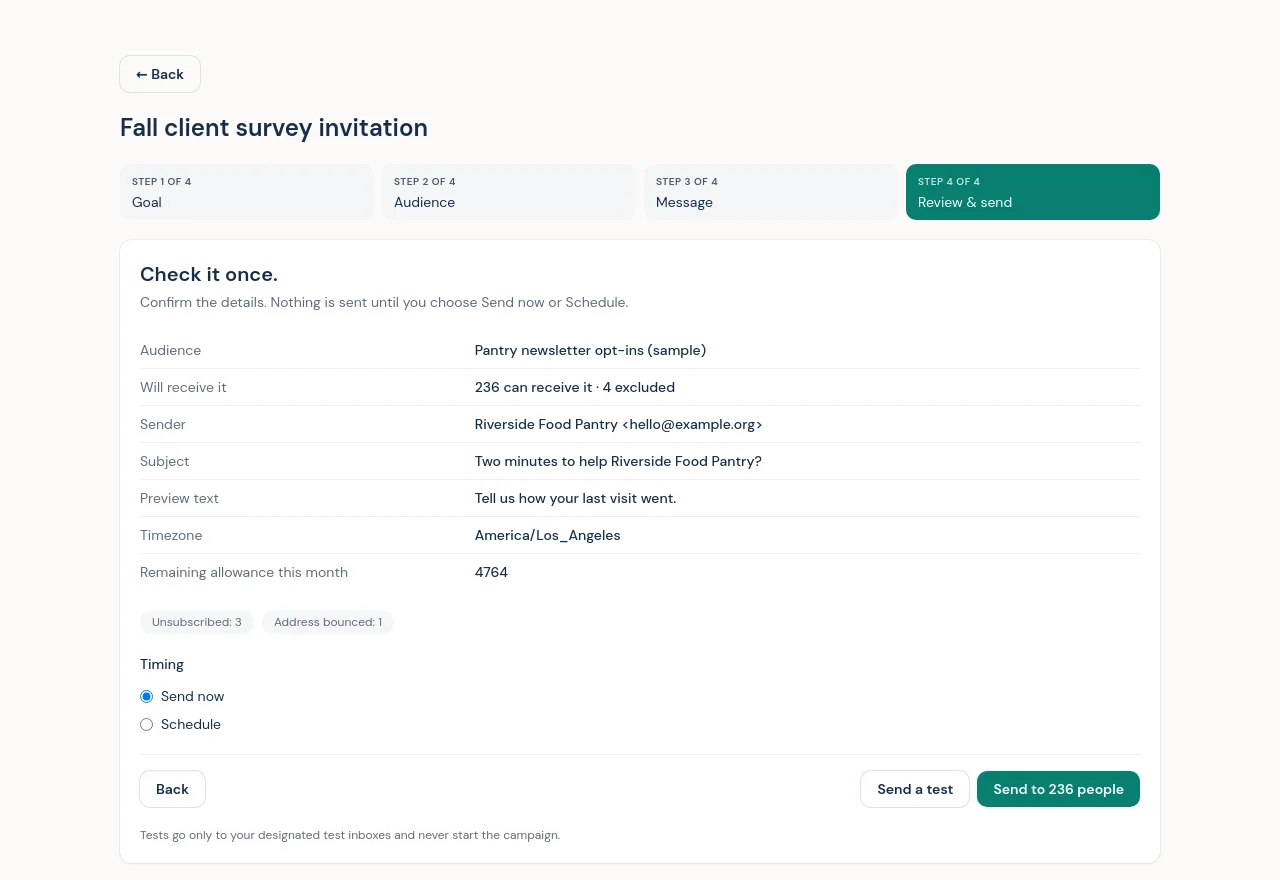
- Send or schedule, then watch delivery in the campaign's Results and responses on the survey's Results page.
Status note: campaign sending is being rolled out progressively; if sending isn't active in your workspace yet, the campaign saves as a draft and the screen shows current availability. The share link and QR code work today regardless.
More in Email campaigns
Was this helpful?
Last updated:
Still need help?
Send us a message with your workspace name and what you tried. Don’t include card numbers or passwords.