
Turn On the Completion Agent for a Form
In short
Open Completion in the sidebar, switch on Completion Agent follow-ups for your organization (they apply to every form), review the schedule, and save. It starts working on the next submission — existing submissions are untouched.
Limited availabilityWhere to find it: Completion → Completion settings2 min read
Steps:
- Open Completion in the sidebar and find Completion settings (owners and administrators only).
- Tick Enable Completion Agent follow-ups and fill in Organization display name, Organization timezone and Organization postal address (all required to turn it on).
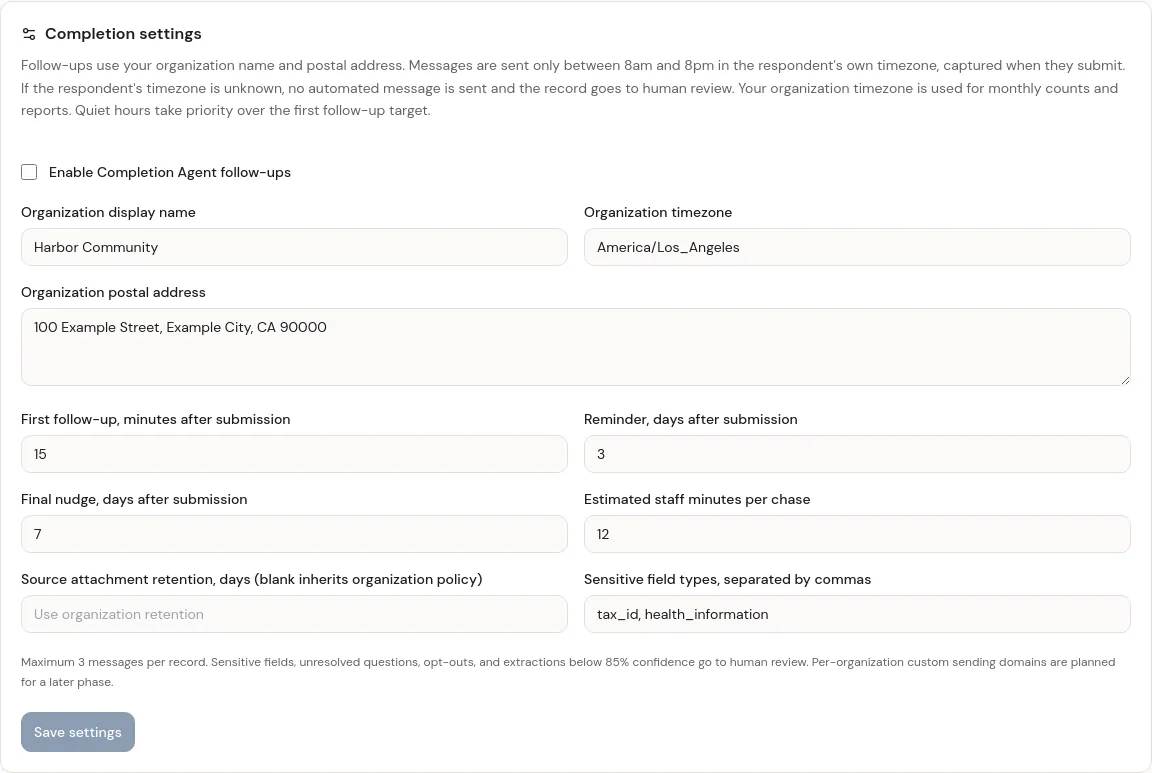
- Review the three defaults before saving:
- Message: fixed wording that names only the missing items, in your organization's name (not editable yet).
- Reminders: when the first follow-up, reminder and final nudge go out (defaults: 15 minutes, 3 days and 7 days after submission; at most 3 messages).
- Escalation: not a setting: after the last message the record is marked Unresponsive, and anything that needs judgment is marked Needs human.
- Choose Save settings. The agent begins watching new submissions immediately.
Availability: follow-ups are sent only once delivery is activated for your workspace. Until then the Completion page shows Delivery is not active. with the reason, nothing is sent, and you can still prepare your settings.
Notes:
- The agent only acts on submissions received after you turn it on. Asking the agent to finish an existing backlog of incomplete submissions is not available yet; there is no Ask Completion Agent to finish this control.
- Turn it off for your organization at any time with the same checkbox. In-flight follow-ups stop; completed records stay complete.
Related: Write Follow-Up Messages in Your Voice · Set Reminder Schedules and Sending Hours
More in Completion Agent
Was this helpful?
Last updated:
Still need help?
Send us a message with your workspace name and what you tried. Don’t include card numbers or passwords.