
Connect Your YouTube Channel and Keep It Connected
In short
Connect once from the Social Media Manager, grant the requested permissions, and your channel stays connected — scheduled uploads publish without repeated logins.
AvailableWhere to find it: Social Media Manager → Connected accounts → YouTube1 min read
Steps:
- Open Social Media Manager → Connected accounts → YouTube → Connect.
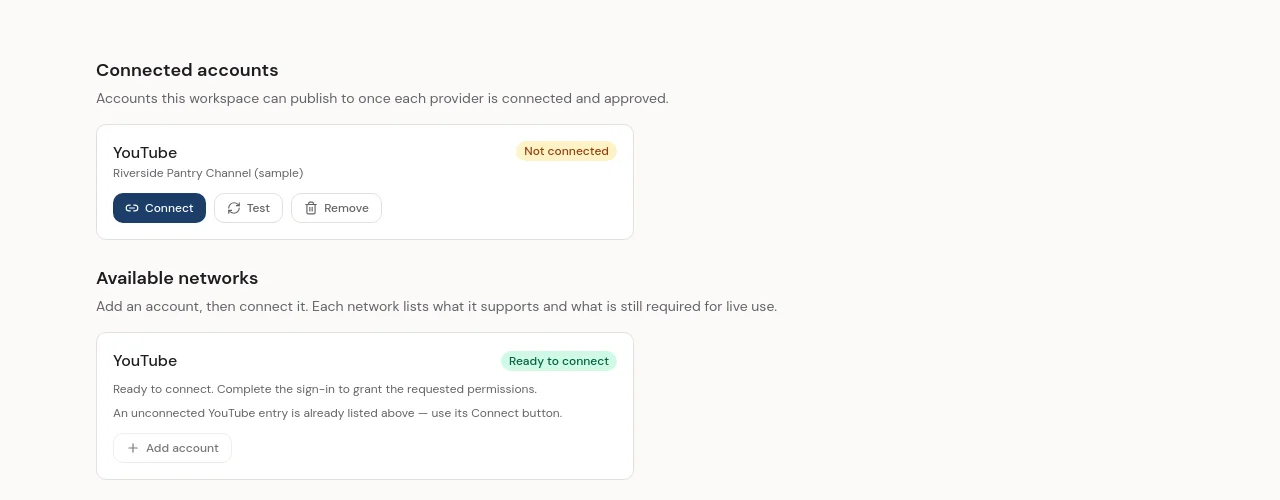
- Sign in to the Google account that owns (or manages) the channel and approve the permissions — they're what allow uploading on your behalf.
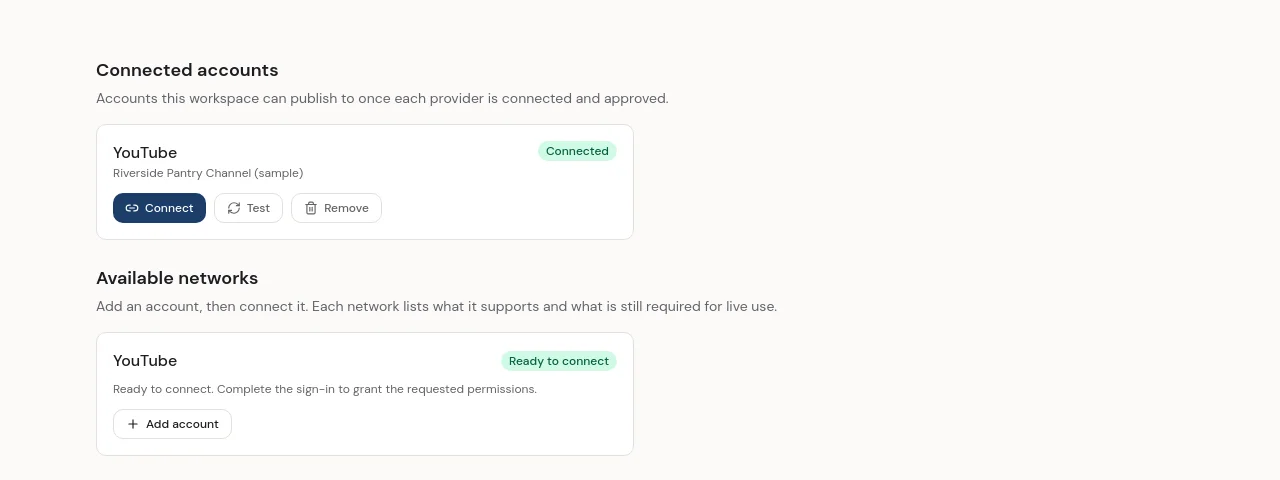
- Back in Klarstig, confirm the YouTube card shows Connected, and choose Test to check the connection.
- Upload a test from Video uploads (an unlisted video works) to verify the full path.
Staying connected: normal token renewal happens automatically on our side — if Google rejects a renewal, the YouTube card shows a message asking you to reconnect. You will be asked again only after a genuine change: you revoked access in your Google account, changed the Google password, or channel permissions changed. If you're being asked repeatedly without those causes, see the troubleshooting guide — that's a defect to fix, not a routine to accept.
More in Social Media Manager
Was this helpful?
Last updated:
Still need help?
Send us a message with your workspace name and what you tried. Don’t include card numbers or passwords.