
Customize a Template With AI
In short
Start from any template, then tell the AI what to change in plain language — add fields, reword copy, rebrand — and review your copy before you publish it.
AvailableWhere to find it: Templates → Customize with AI1 min read
Steps:
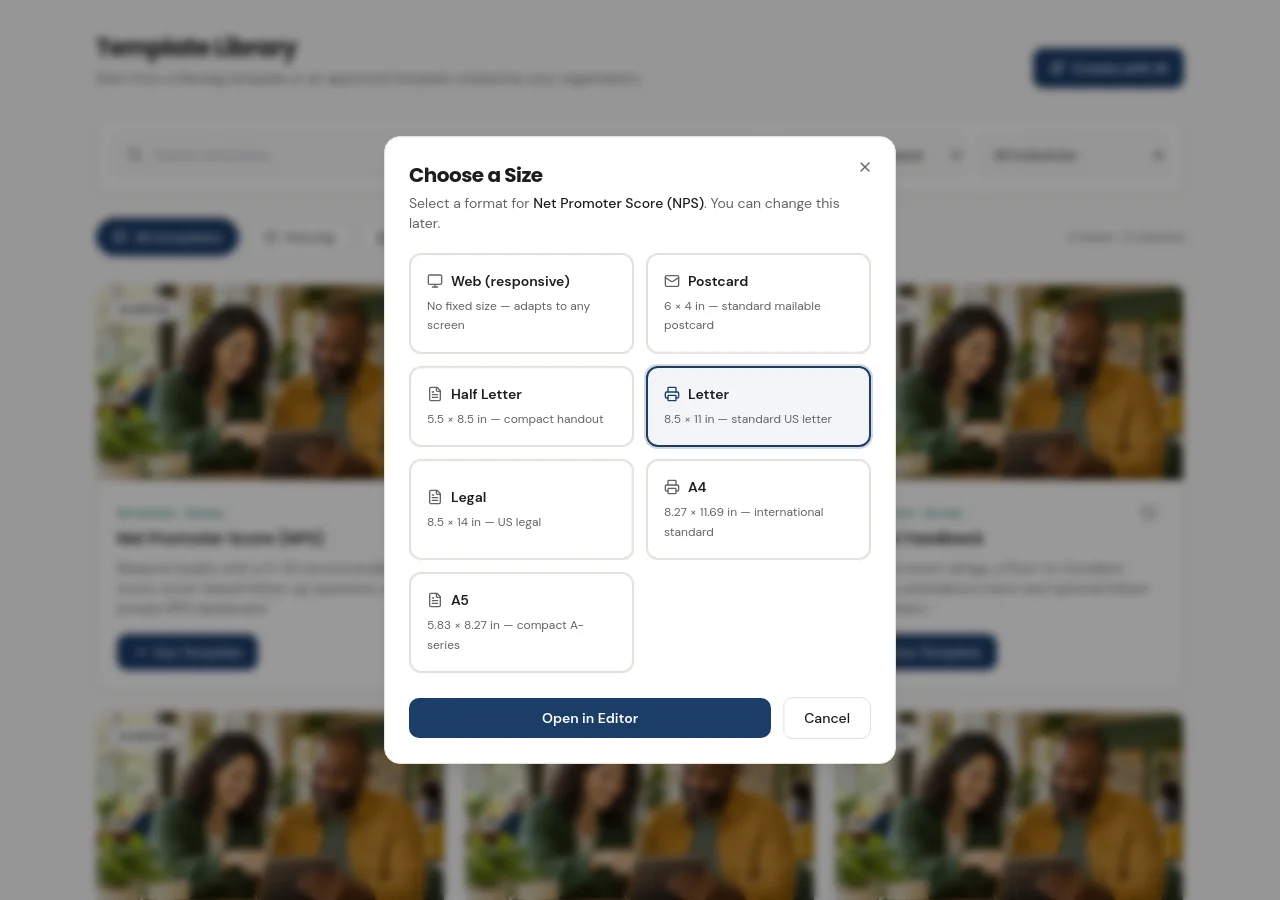
- Open a template in the public template library and choose Customize with AI. Once you are signed in, choose Use Template and a page size; your copy opens with the Concierge panel beside the builder.
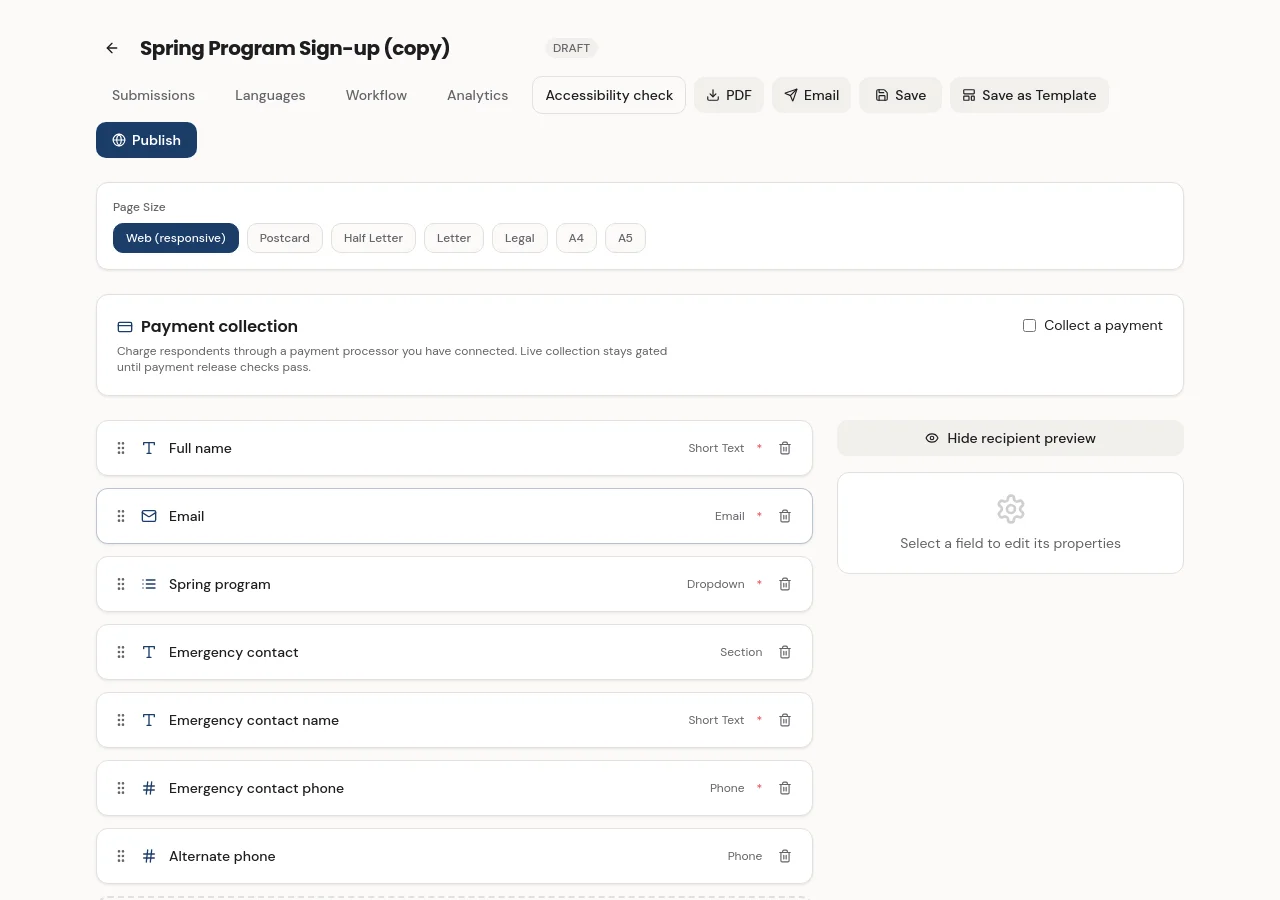
- Describe the change: "Add a section for emergency contact with two phone fields", "Make the intro warmer and mention our spring program", "Remove everything about payment".
- Review the result in the builder — nothing is published until you choose Publish.
- Repeat in short requests rather than one giant instruction; small steps review faster and revert easier.
- Check the result on mobile before sharing.
Good to know: you're editing your own copy — the master template is untouched, and other organizations' versions are unaffected.
More in Templates
Was this helpful?
Last updated:
Still need help?
Send us a message with your workspace name and what you tried. Don’t include card numbers or passwords.